Issues panel
The issues panel provides an overview of all issues found in your project, helping you identify and resolve any problems which may cause accessibility, performance or maintainability issues.
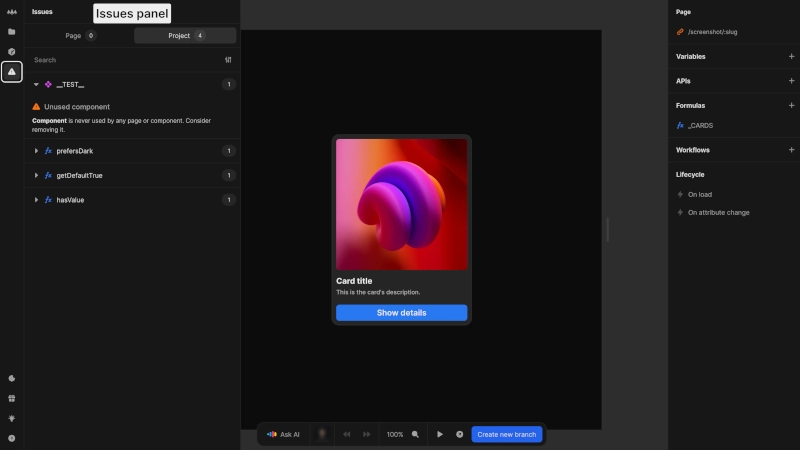
Accessing the issues panel
Access the issues panel by clicking the issue icon in the left sidebar of the editor.
It's good practice to check the issues panel during development to catch and fix issues early. Issues specific to any areas of your project such as formulas, HTMl elements or events will be highlighted by a warning symbol next to the affected area.
Structure
The issues panel is split into two views:
- Current component/page: Displays issues specific to the component or page you're currently editing
- Project overview: Provides a complete list of all issues across your entire project. Issues are bundled by component or page with:
- Expandable sections with a complete list of issues
- A badge indicating the number of issues
Issue details
Each issue includes:
- Severity level (info, warning, error) indicated via an icon
- Descriptive title
- Detailed description of the issue
Click on an issue to navigate directly to its location in your project.
Issues are also indicated with corresponding icons next to affected items in the editor, helping you quickly locate problem areas.
Finding specific issues
Search functionality
Use the search bar to quickly find specific issues.
Filtering options
Narrow down the displayed issues using filters for:
- Severity level: Filter by info, warning, or error status
- Issue type: Focus on specific categories, e.g.
No ReferencesorSEO
The issue detection system is being continuously improved to identify more issues to help you build stable, performant and accessible websites.