Command palette
The command palette is the fastest way to navigate your project, jump between files, and perform actions directly from your keyboard without using the sidebar.
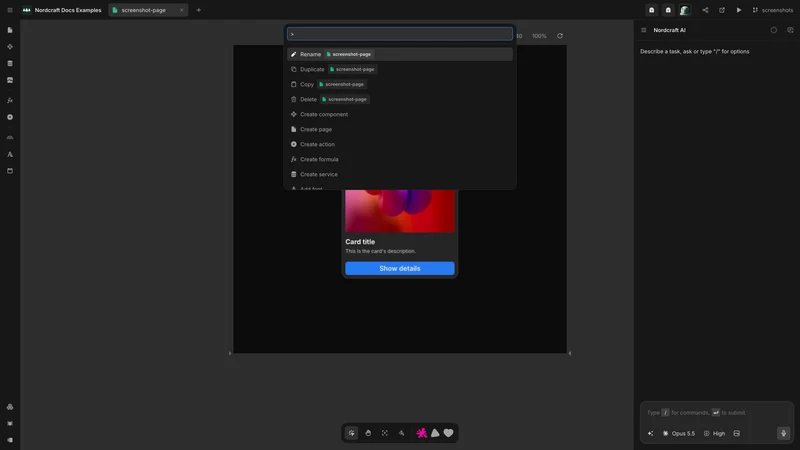
Open the command palette
The command palette operates in two modes:
- File search (Quick open): Press Cmd/Ctrl + K to search and open any file in your project.
- Action search: Press Cmd/Ctrl + Shift + K to open the palette pre-filled with the action prefix (
>) and execute editor actions.
You can also switch between file search and action search simply by typing or deleting the > character at the start of the input.
File search
When opened with Cmd/Ctrl + K, the command palette displays your recently opened files and lets you search across all project resources:
- Components: Reusable UI components
- Pages: Top-level application pages and routes
- Formulas: Project-wide custom formulas
- Actions: Global custom JavaScript action files
- Services: API integrations and external services
- Routes: Configured application routes and redirects
- Fonts: Installed web fonts
Start typing any part of a file name to fuzzy-filter the list. Use the ↑ and ↓ arrow keys to navigate the results and press ↵ to open the selected file into an editor tab.
Action search
When opened with Cmd/Ctrl + Shift + K (or by typing > in the search input), the command palette lets you execute common editor commands:
Creating new project files
You can create new files instantly without navigating through the project sidebar:
- Create component: Open the new component dialog
- Create formula: Create a new project formula
- Create action: Create a new custom JavaScript action
- Create service: Connect a new API or backend service
- Add font: Open the Google Font picker to install new fonts
Managing the active file
When you have a file open in the editor, the command palette provides contextual actions for that file:
- Rename: Rename the current component, page, formula, action, or service
- Duplicate: Duplicate the current component, page, or route
- Copy: Copy the file definition to your clipboard as JSON
- Delete: Safely delete the open file (checks for component or service references before confirming)