Branch history
In Nordcraft, changes are automatically committed to a branch when changes are made. Think of it as an "auto save" feature. All previous commits to your active branch are shown in the History tab. The branch history is a tool that allows you to see every commit that has been made to the active branch. Each entry shows when the changes were committed to the branch, who made the changes, as well as the description for those changes.
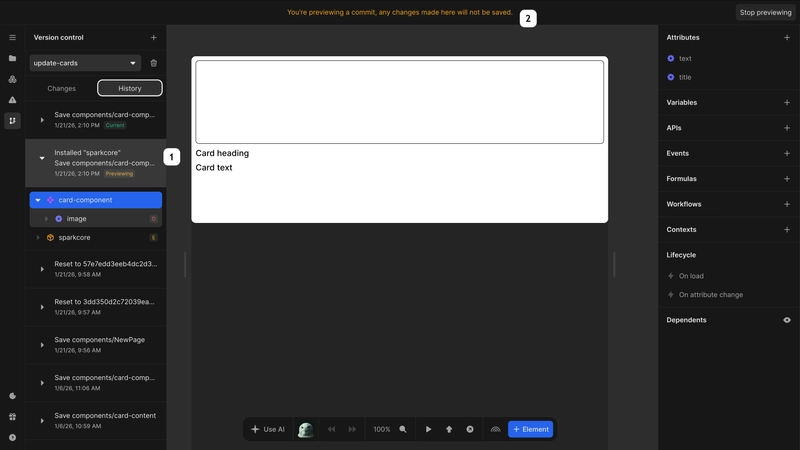
Preview changes
Every commit in the branch history can be previewed. When previewing a commit, the editor will update to give a snapshot of how your project looked at the time of that commit. You can look through all of the project, but you cannot make any changes to the commit. You can preview a commit either by opening the dropdown menu on a commit in the list (#1 in the image) and selecting Preview commit, or expanding the commit and clicking one of the changes. If the change is a deletion, the editor will preview the commit before, so that you can view the value that was deleted. In order to close the preview, click the Stop previewing button in the top right corner of the viewport.
Roll back changes
If you want to revert some of the changes that have been made on your branch, you can roll them back. You can choose to roll back the entire branch or the file that is currently open. Rolling back will revert the branch or file to the state of the chosen commit. You can roll back a file or branch to a specific commit by right clicking the commit and selecting Rollback current file to this commit or Rollback branch to this commit.
Rolling back a branch or a file is not irreversible. It will create a new commit with the rolled back changes. You can roll back to the original commit, if you change your mind.